Affiliate links on Android Authority may earn us a commission. Learn more.
There's a new hidden way to customize your Pixel home screen. Here's how to find it


As much as I love Google’s Pixel phones, I’ll be the first to admit that home screen customization has never been a strong suit. Pixels get so much right, but when it comes to deep customization options, they leave a lot to be desired.
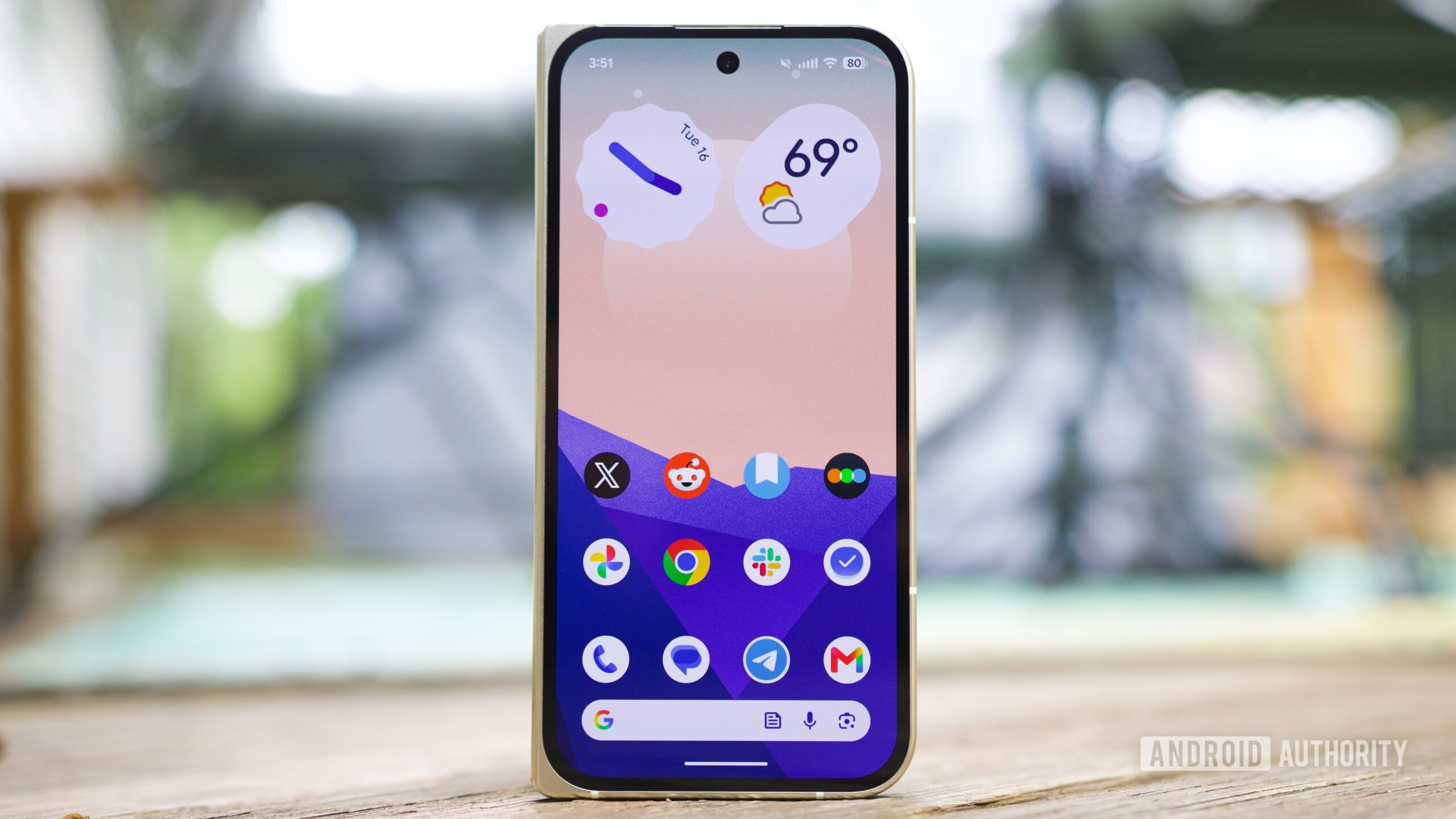
Thankfully, Google has been making strides to change this. After adding system-wide app icon theming and AI-generated icon packs, Google has now added another home screen setting to let you fine-tune your Pixel even more. Specifically, you can now remove app icon names for a sleek, minimalist home screen setup.
Want to use this on your Pixel? Here’s what to do.
What's your favorite new feature in Android 17?
What you need to access this setting
To hide app names on your Pixel home screen, you’ll first need to ensure your phone is running Android 17. The setting is directly part of Android 17, so if you’re still on Android 16, you’ll need to update your Pixel first.
Google began rolling out Android 17 on Tuesday, June 16. If you haven’t checked your phone for the update yet, here’s what to do:
- Open the Settings app.
- Tap System.
- Tap Software updates.
- Tap System update.
- Tap Check for update.
Within a couple of minutes, you should see an available system update to Android 17. The update is available for Pixels as old as the Pixel 6, so if you have a Pixel 6 or newer model, you can download Android 17 without a problem.
How to hide app names on your Pixel home screen

Once you’ve got Android 17 on your Pixel, using this new customization setting is very simple — you just need to know where to look. Here’s how to find it:
- Press and hold on a blank part of your home screen.
- Tap Wallpaper & style.
- Tap Icons.
- Tap Names.
- Tap the toggle next to Show app names.
- Tap Apply.
Now go back to your home screen, and you’ll see that all the app icons no longer have their names below them. You’ll still see app names in your app drawer, but any apps on your home screen are now displayed without the name.
This won’t be everyone’s cup of tea, but if you’re trying to craft a super simple home screen layout, a setting like this is wonderful to have. I particularly like how it looks when you pair the missing app names with the “Minimal” app icon style (which matches all your app icons to your current system accent color).

You can re-add app names at any time by following the same steps above, and you can change this back and forth as often as you’d like.
There’s plenty more I’d like to see from Google on the home screen customization front (third-party icon pack support, please, Google), but this is still a great touch. Something about the Pixel Launcher just feels right on a Pixel phone, and I’ll never turn down more ways to customize it.
Thank you for being part of our community. Read our Comment Policy before posting.
Source link